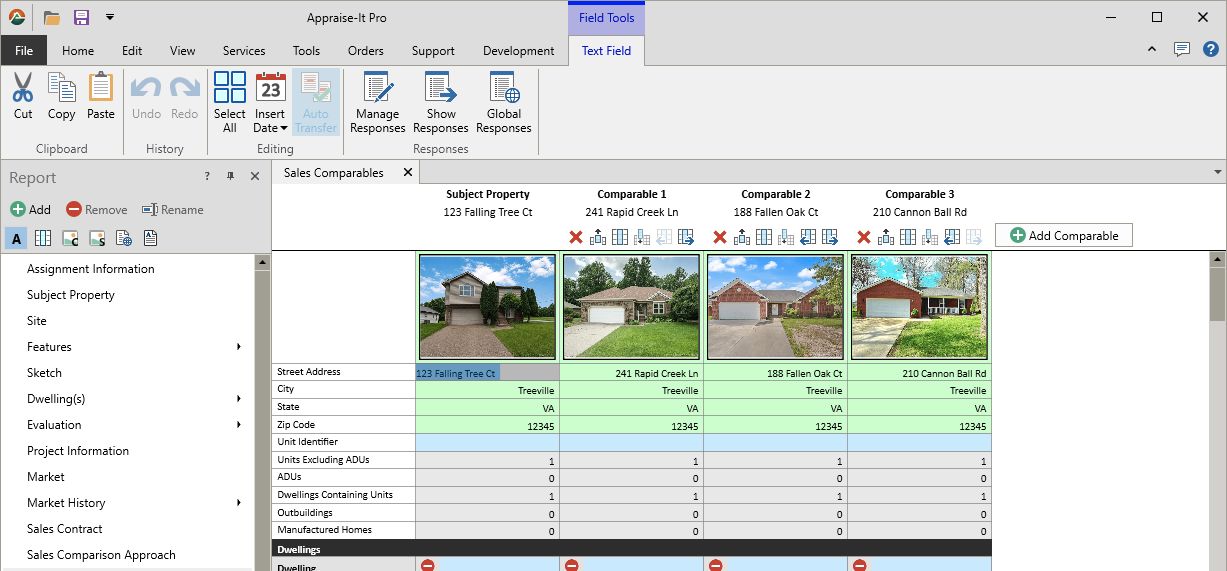
Export a UAD 3.6 report to a NEW Appraise-It Pro report
Edited
This guide details how to export a UAD 3.6 report from DataMaster into Appraise-It Pro as a new UAD 3.6 report.
Step 1. Navigate to your UAD 3.6 report in DataMaster
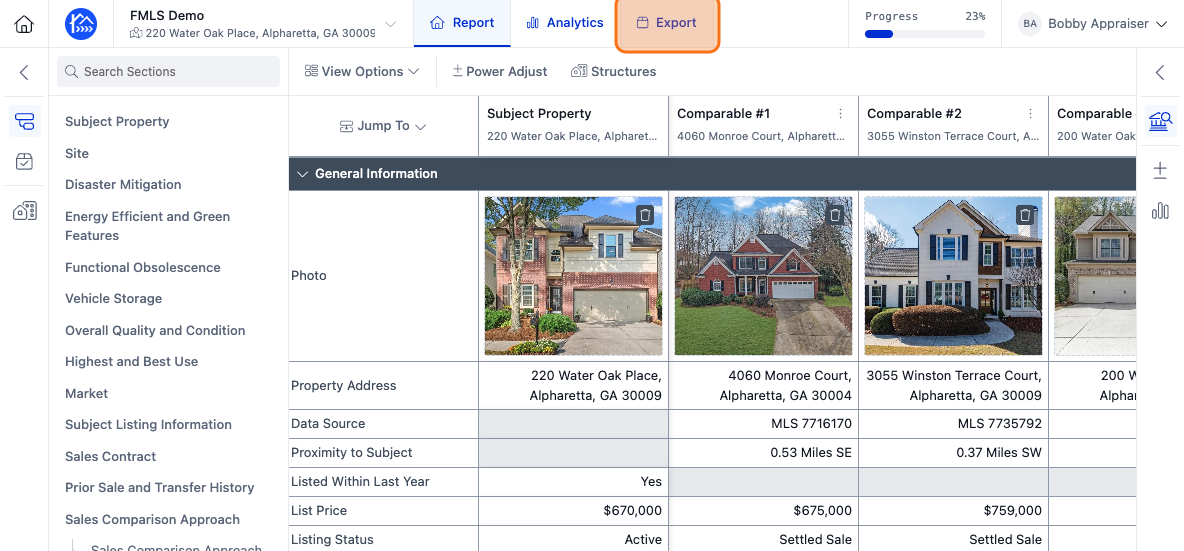
Step 2. Click on the Export button to open the export dialog.
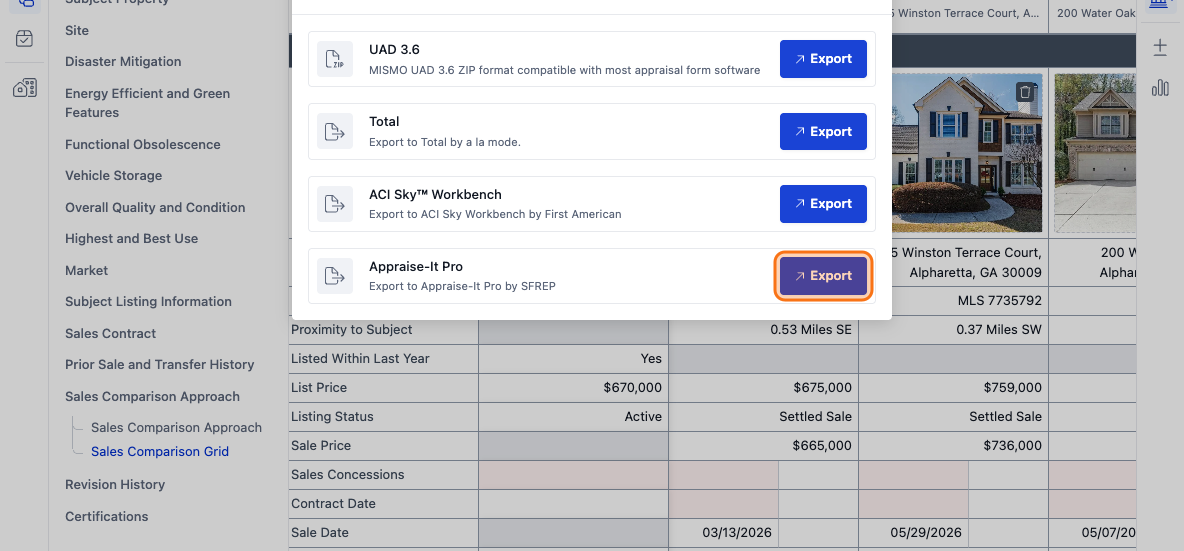
Step 3. Find Appraise-It Pro in the list of export formats and click Export next to it
Step 4. Open Appraise-It Pro on your computer.
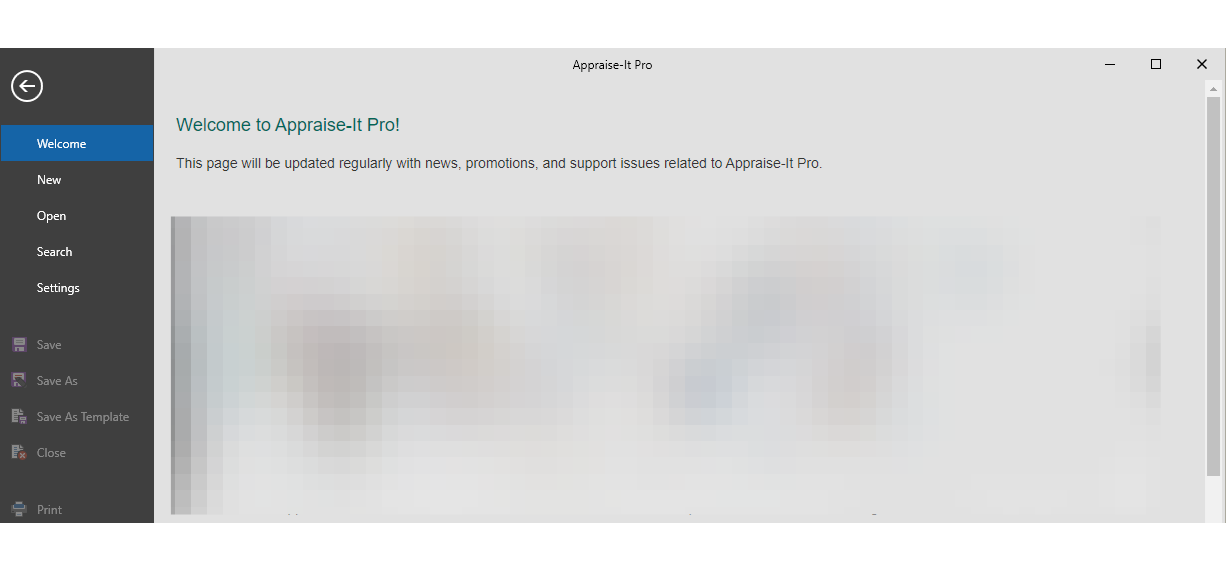
Step 5. Click on the Open button on the left hand side.
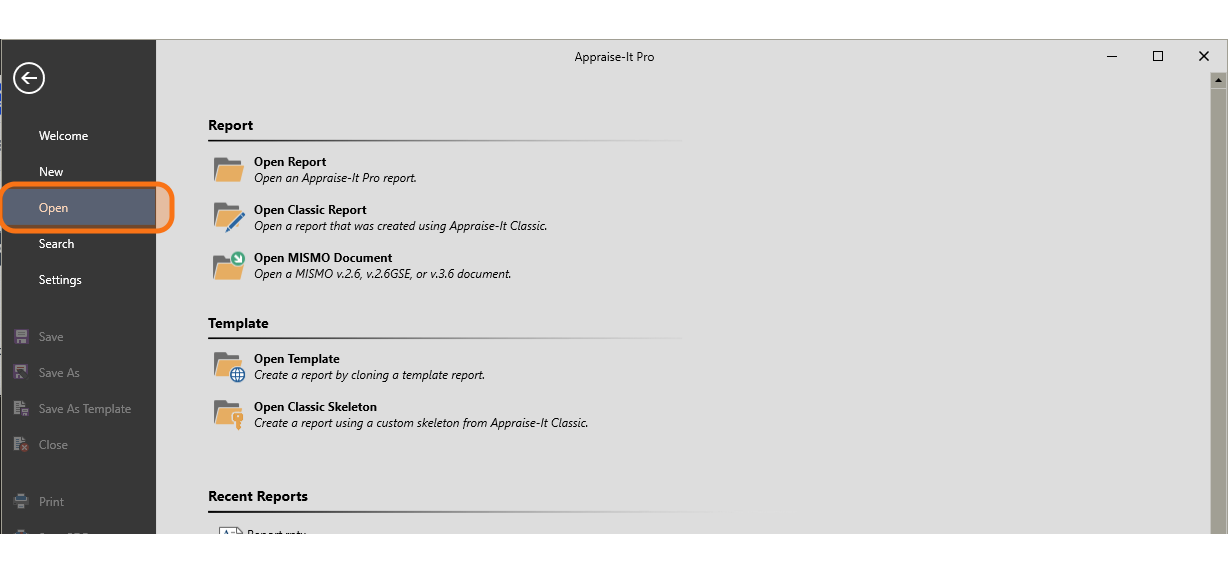
Step 6
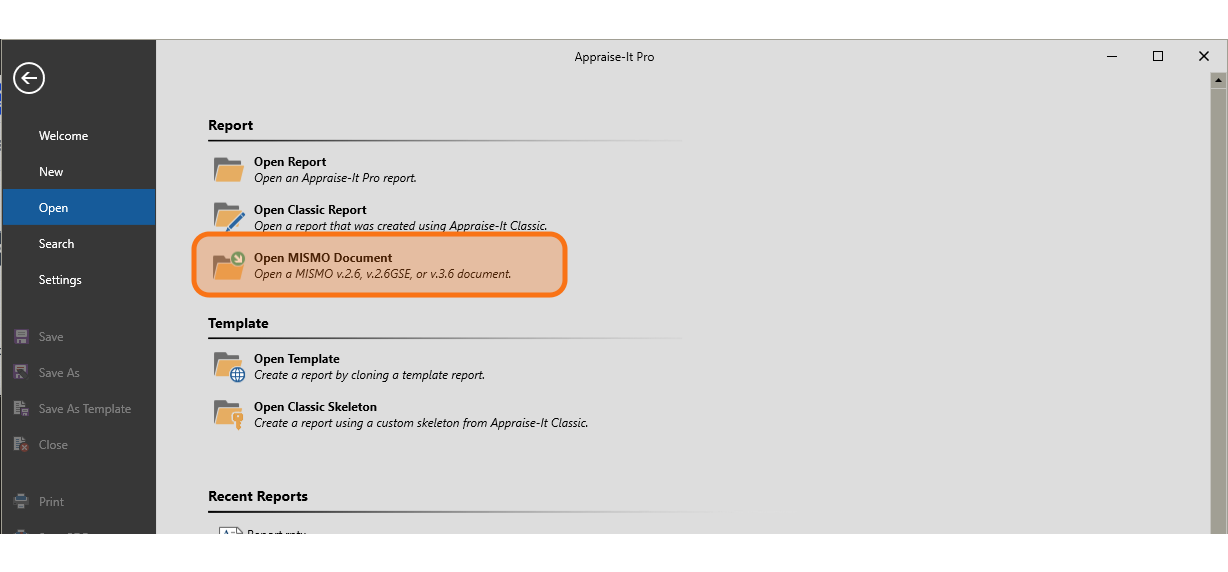
Click on the Open MISMO Document option
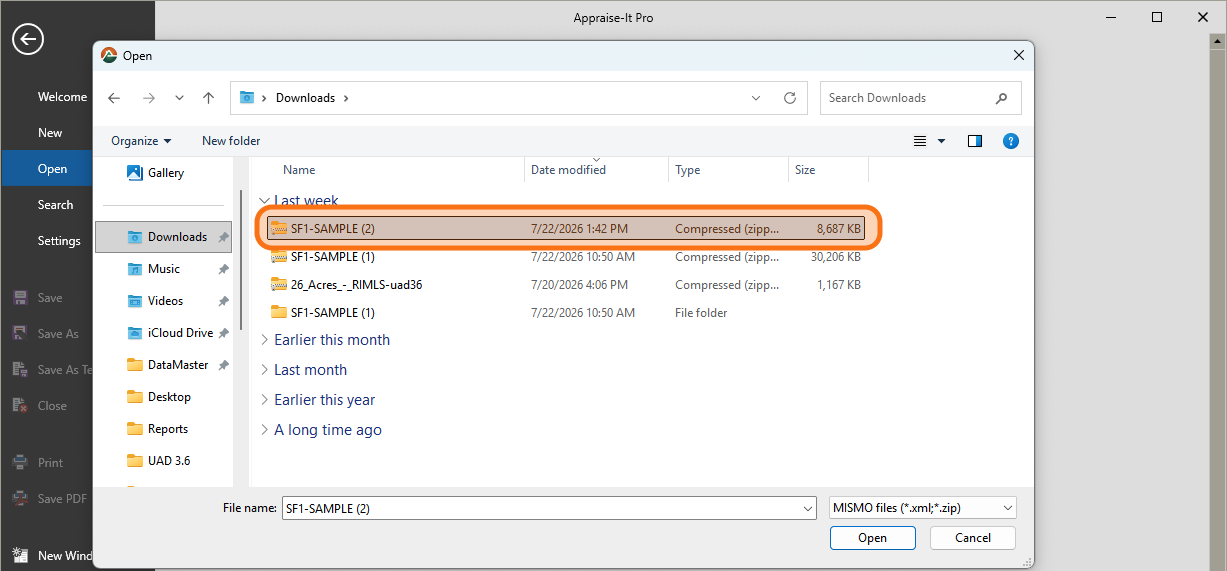
Step 7. Find the export file from DataMaster, usually in your Downloads folder, and select it.
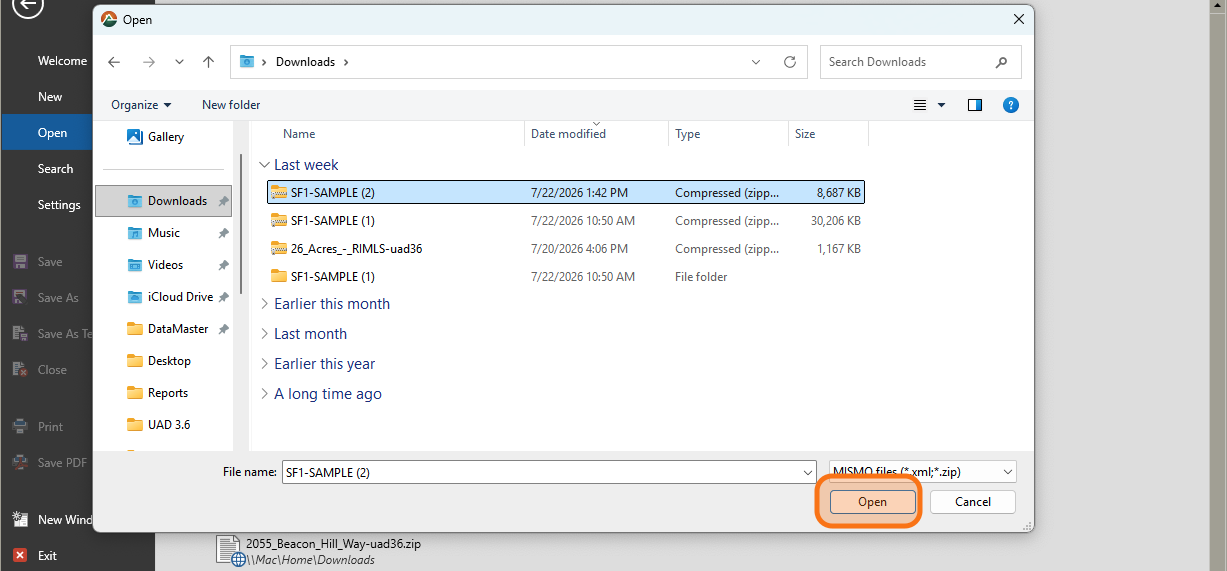
Step 8. Click Open to select it.
Step 9. You should now see your imported report within Appraise-It Pro, don't forget to save it