How to Bulk Add/Import Sales Comparables using an exported file from your MLS
This guide shows how to bulk add/import comparables using an exported file from your MLS to a Sales Comparison Approach report on DataMaster by navigating sections and inputting and selecting relevant property details effectively.
Step 1
Navigate to your report within the DataMaster portal
Step 2
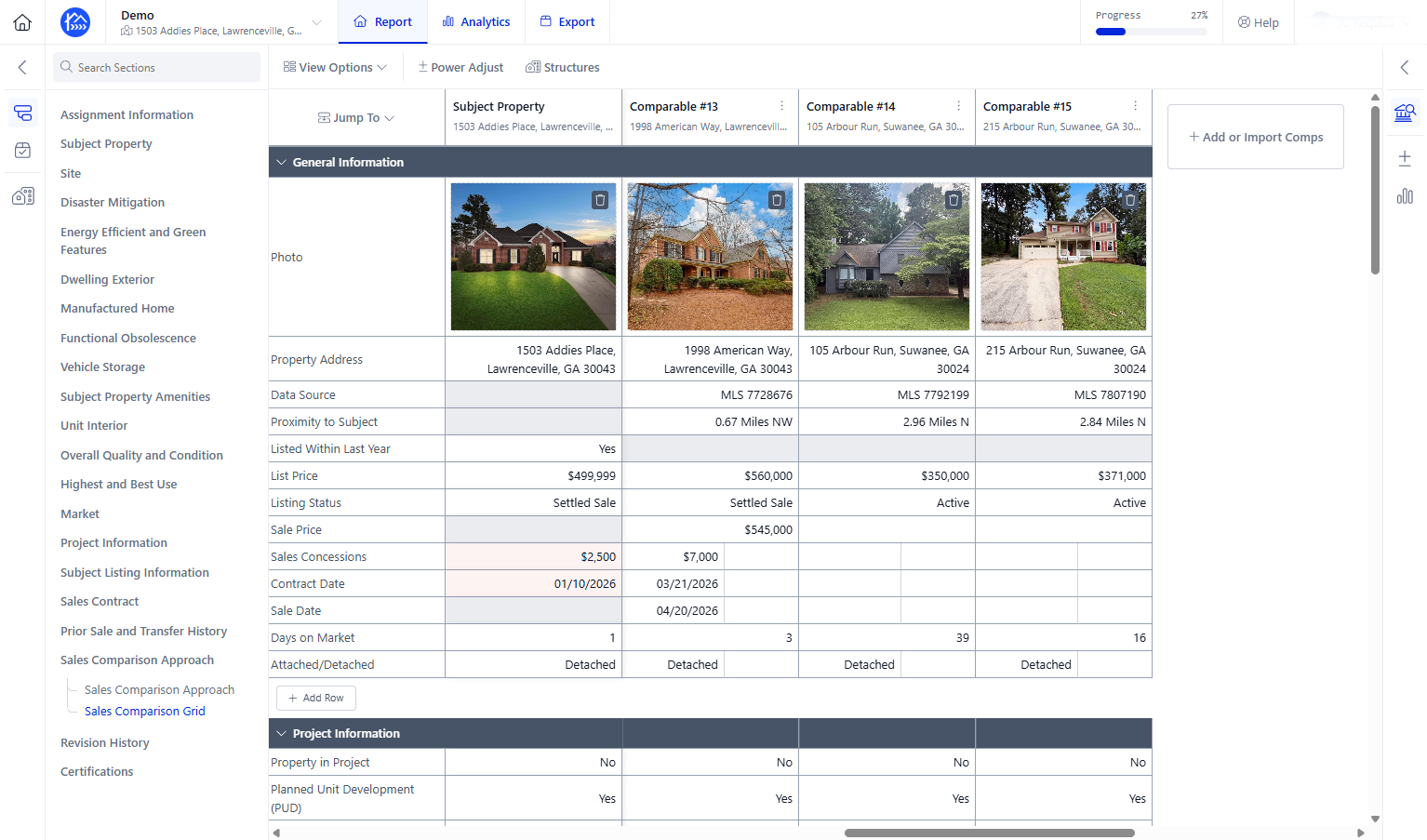
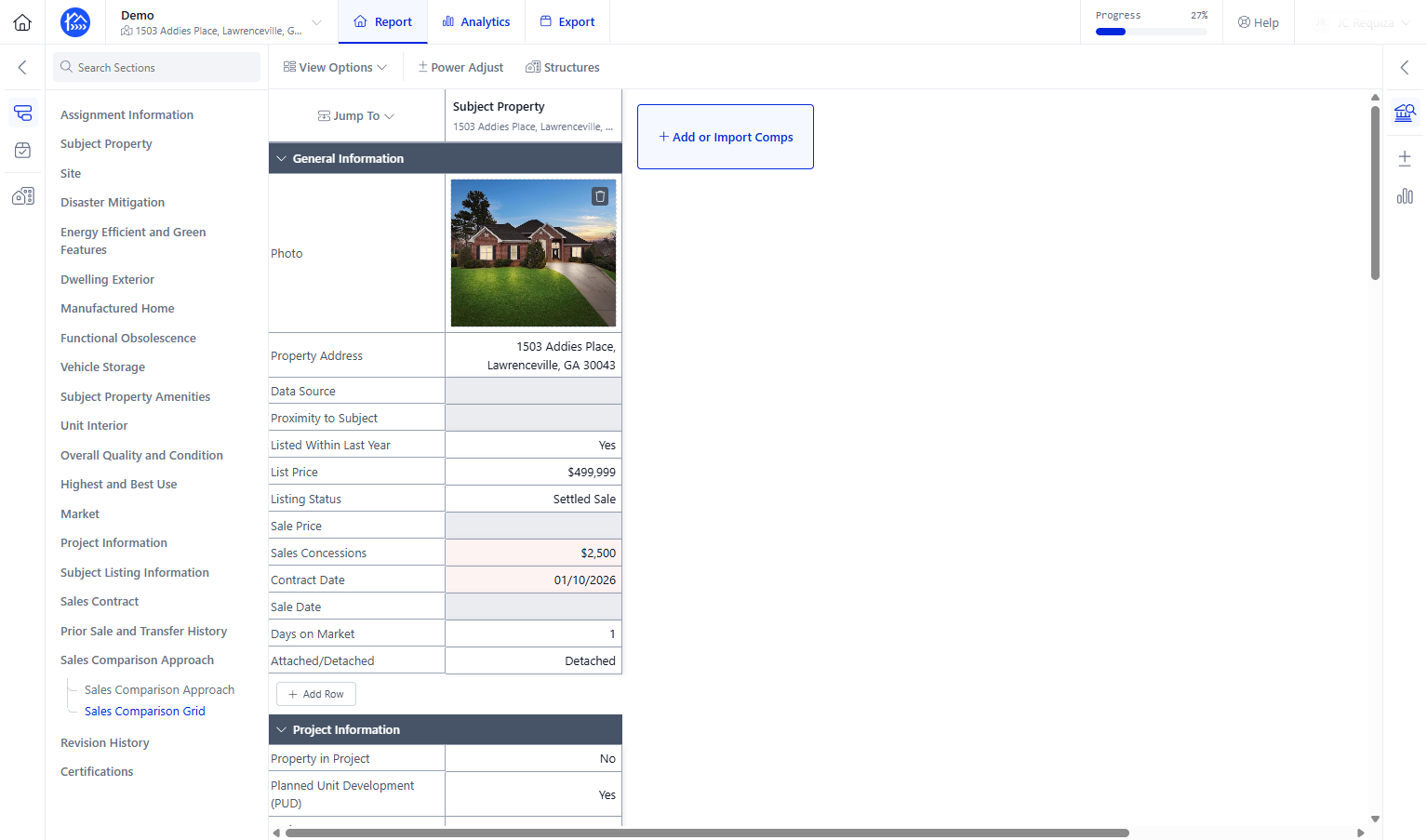
Given that you have already added a Subject Property, you can proceed in Clicking + Add or Import Comps to add comparable properties
Step 3
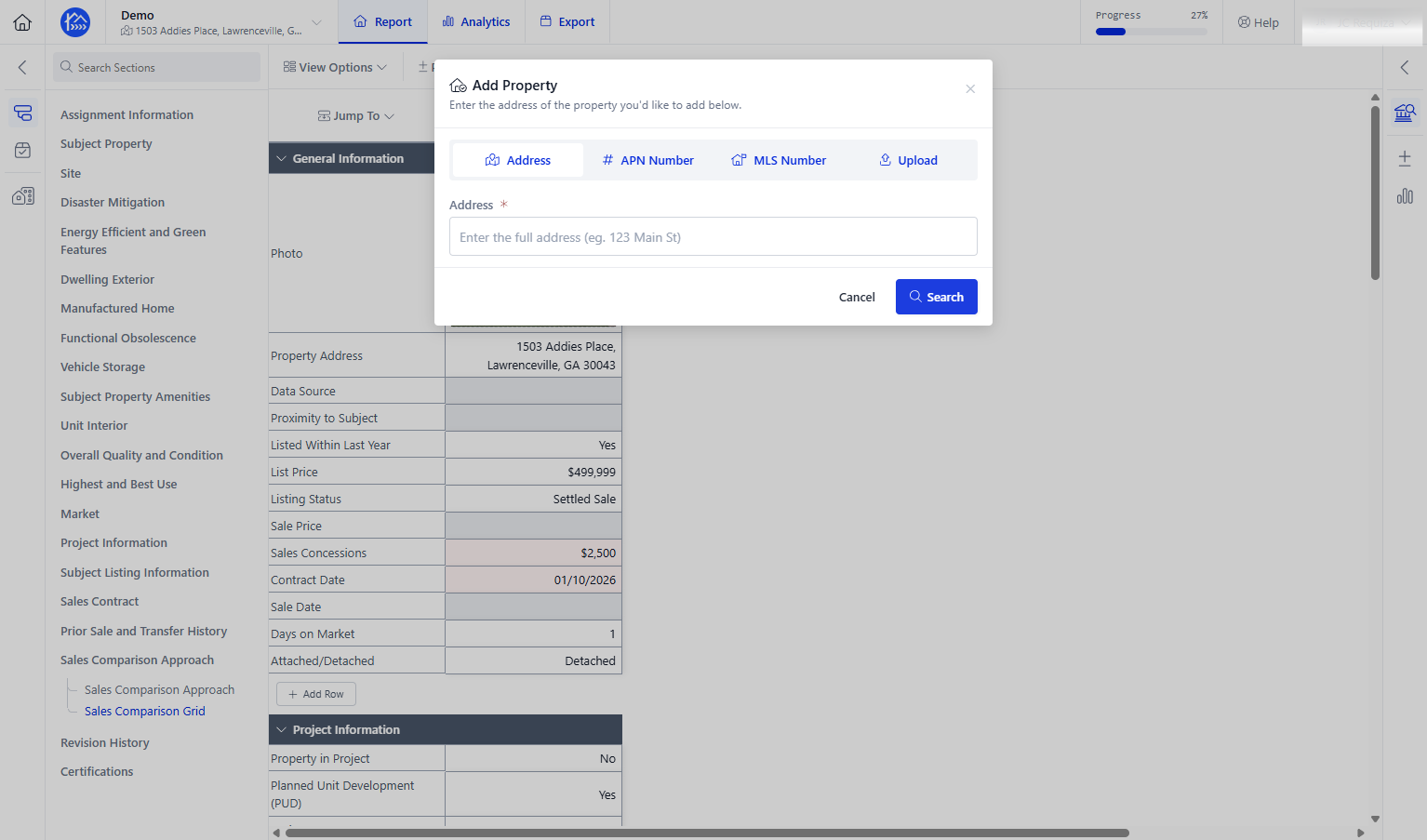
Click Upload to import comps from your file directory (usually the "downloads" folder in your computer)
Step 4
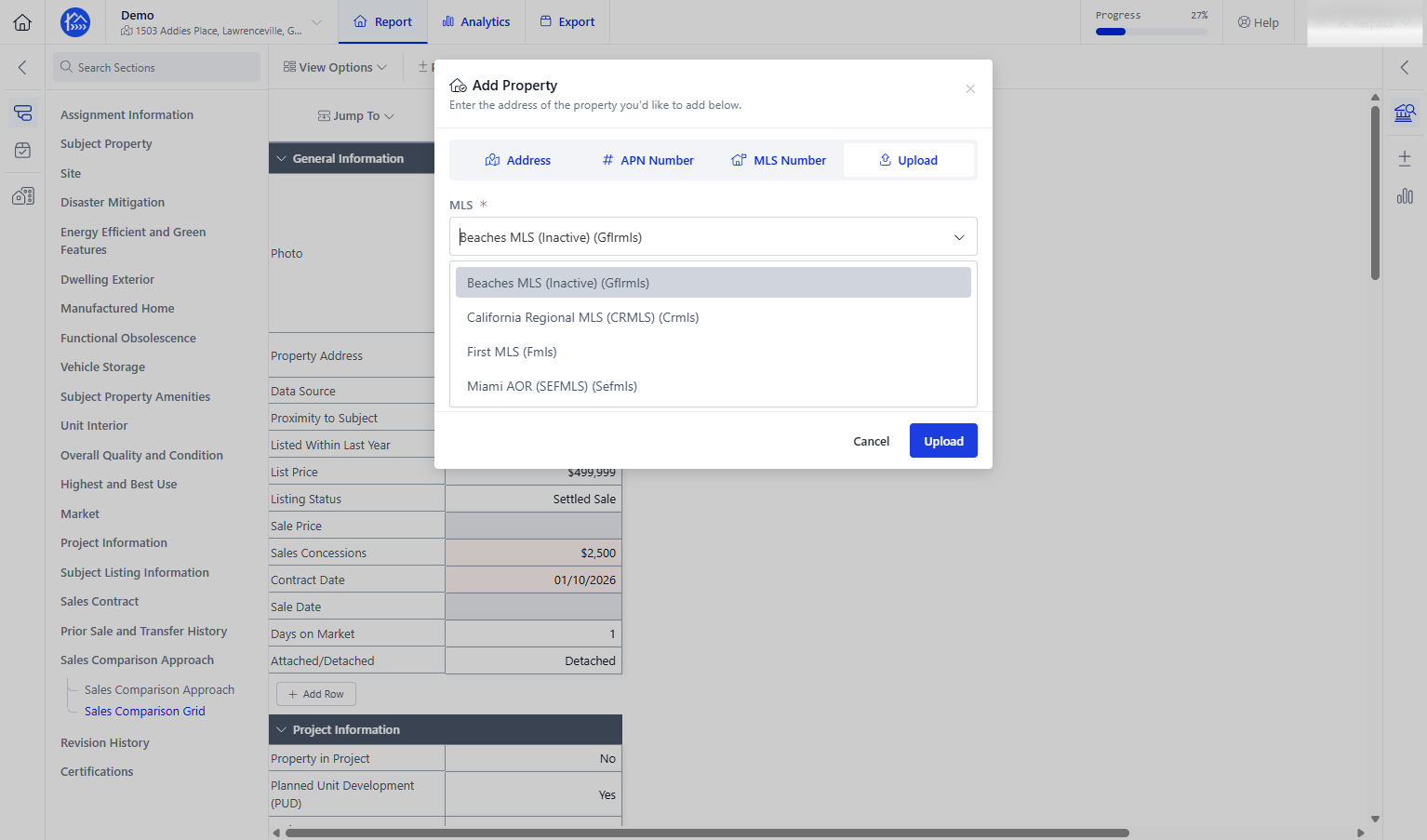
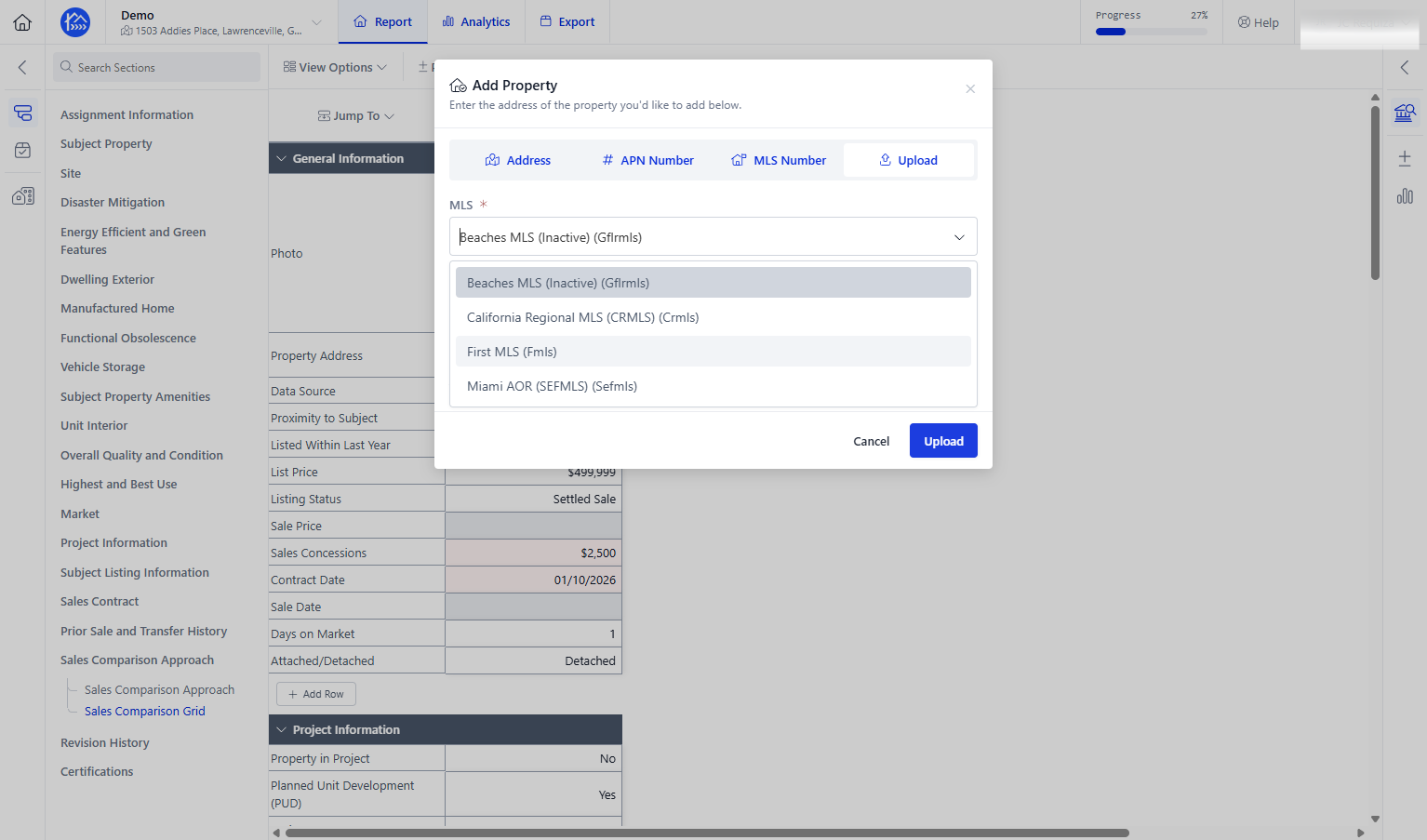
If you have have multiple MLS added on your account, make sure to select the correct one before uploading the file
Step 5
On the other hand, If you only have one MLS registered under your account, you can proceed in uploading the MLS export file
Step 6
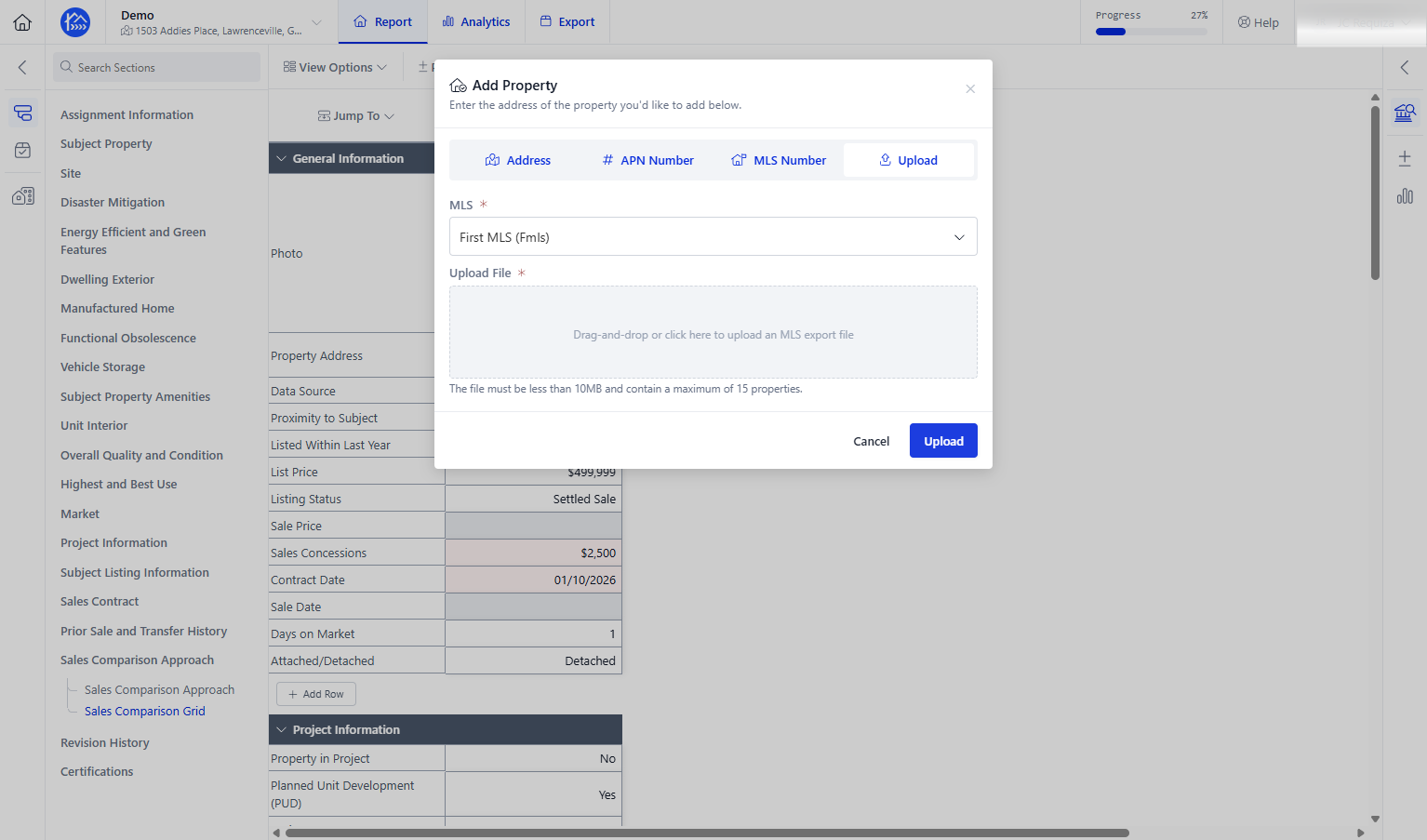
Click the Upload an MLS export file area to add an MLS export file from your file directory. You can also "drag and drop" the export file unto the upload file section
Step 7
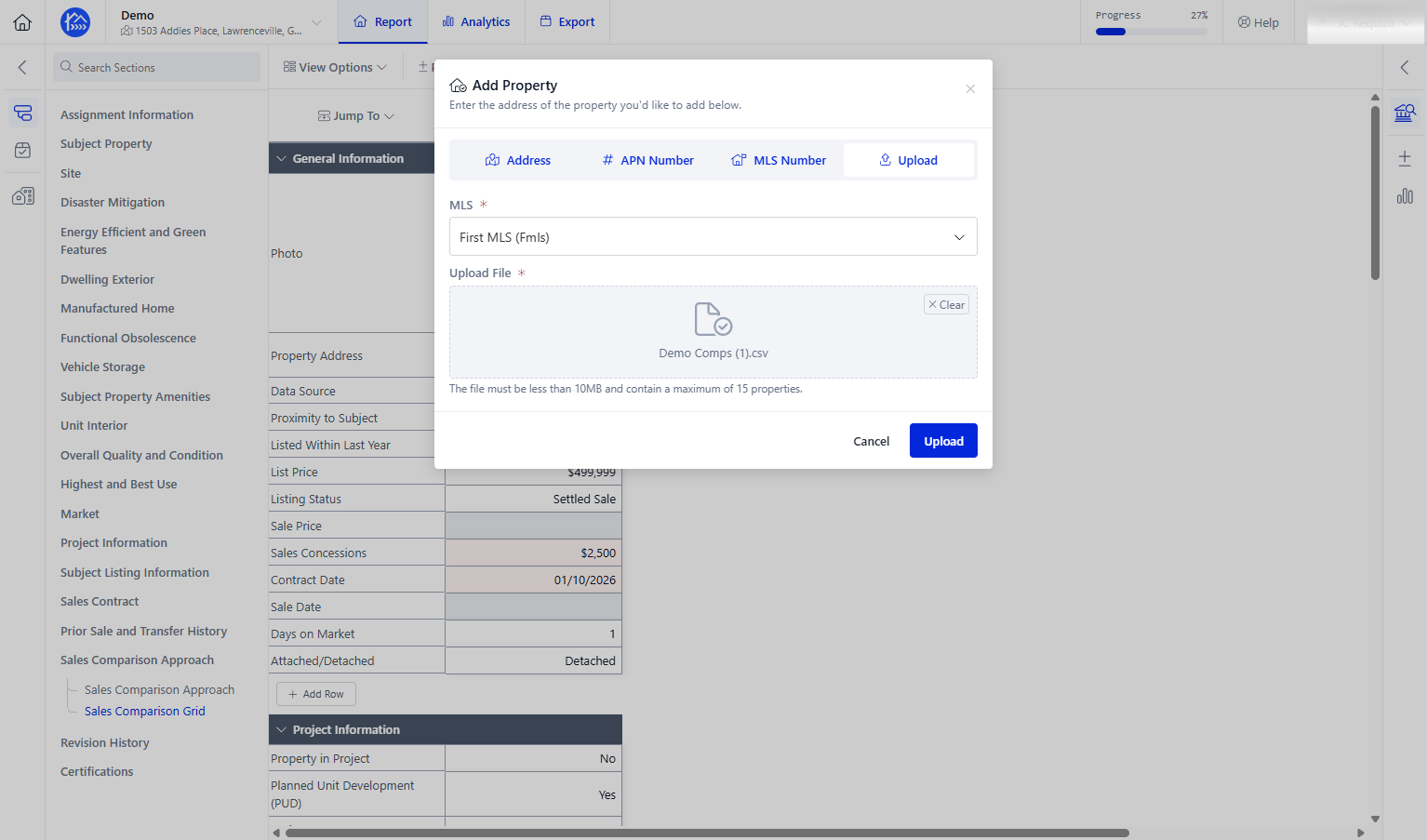
Once done Click Upload to import the selected MLS file
Step 8
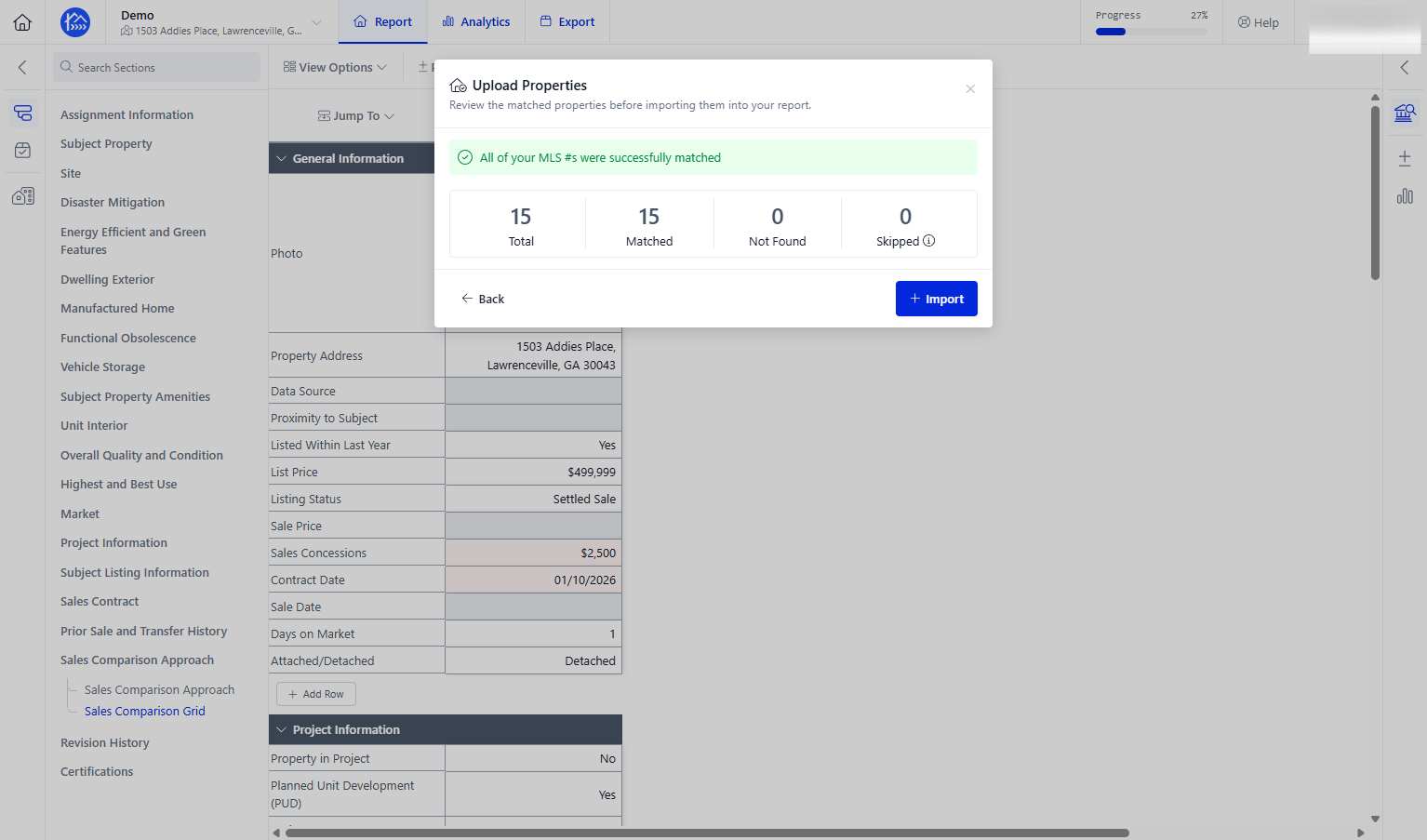
Review the matched properties from the uploaded file before importing to the report. The system usually shows you whether all properties have matched, not found or skipped. Once you're all good with the uploaded file, click on + Import button to add the properties
Step 9
Your comparable properties should now be added on the sales grid
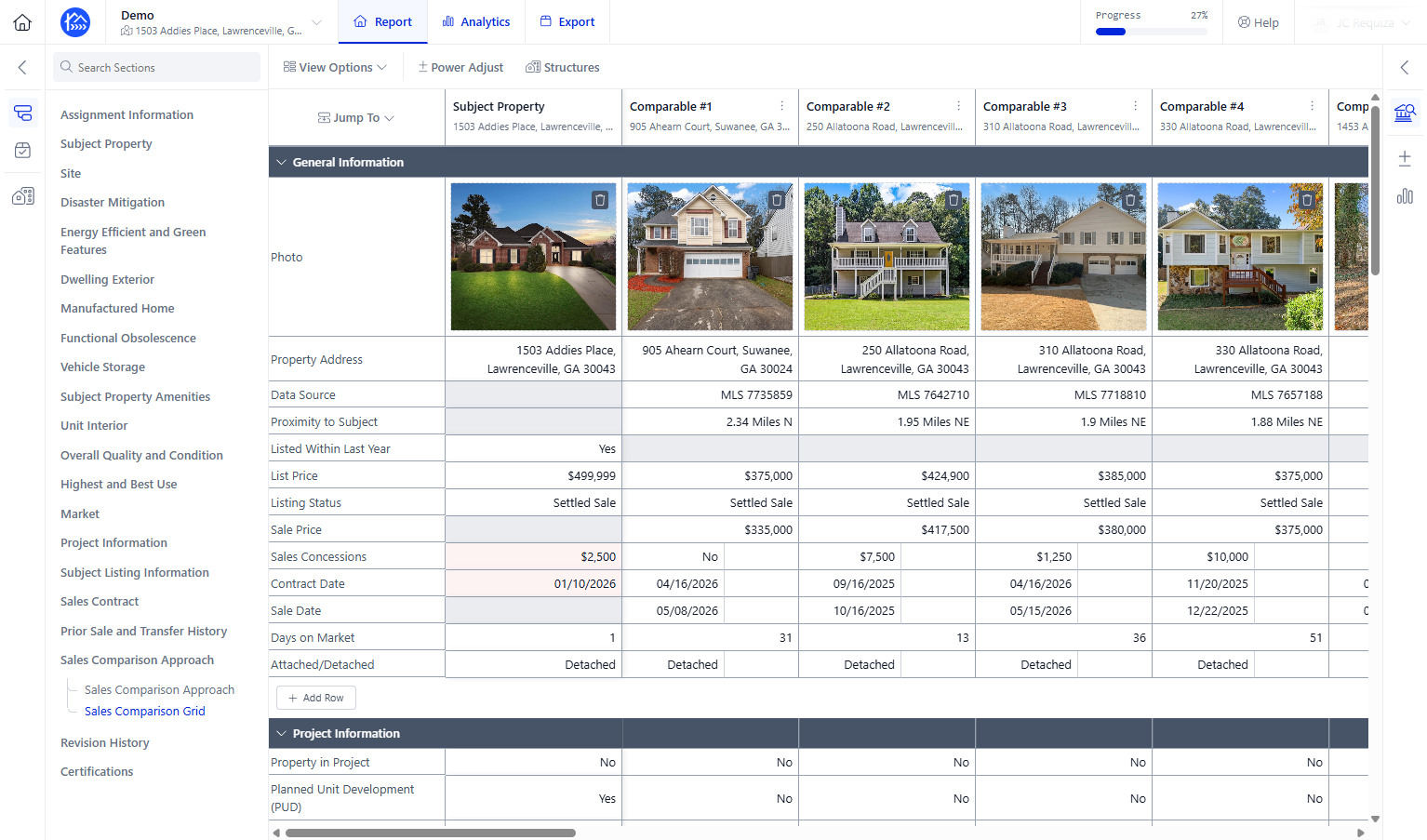
Step 10
Please take note that the sales grid has a max limit of 15 comparables only