
How to use Power Adjust to apply uniform adjustments?
Adjusting comps one cell at a time is slow, and it's easy to end up with the same feature adjusted three different ways across the grid. Power Adjust lets you define an adjustment rule once for a sales grid row and applies it to every comparable automatically — consistently, transparently, and with a per-comp override whenever the market says otherwise.
What is Power Adjust?
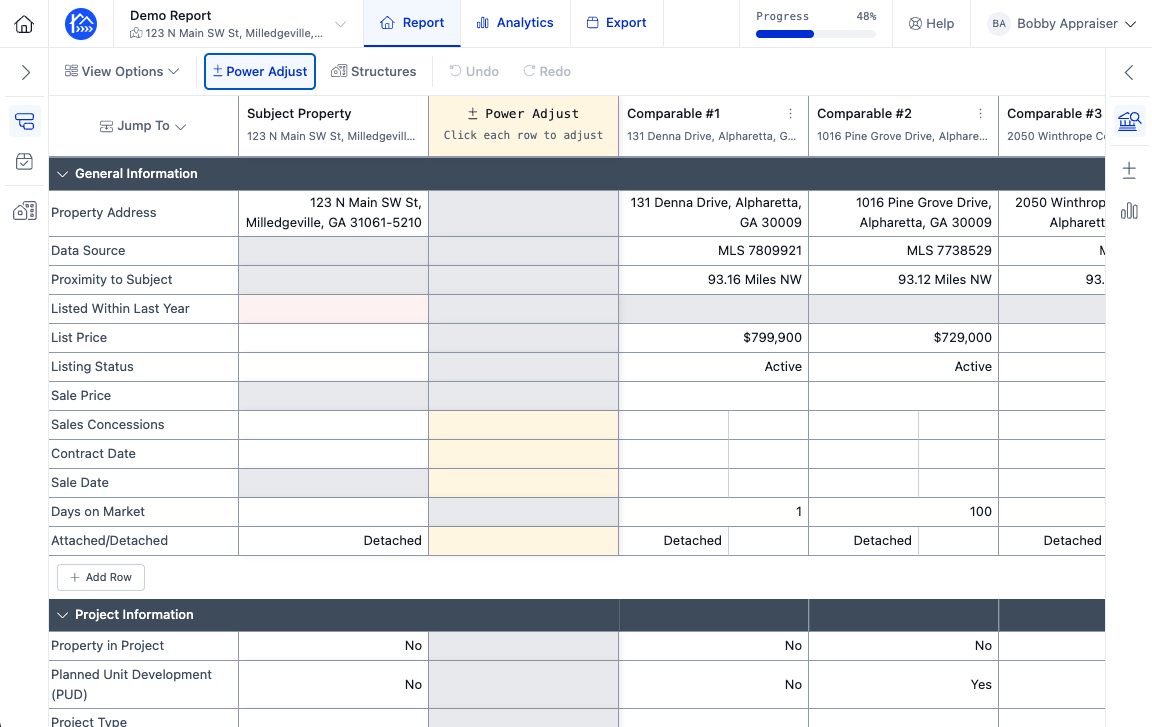
Power Adjust is a centralized Adjustments column on the Sales Comparison Grid. Each row in that column holds one formula — your rule for how that feature should be adjusted — and DataMaster applies it across all of your sales comparables at once.
One rule, every comp. Enter
$2.50 per Sq. Ft.on the Gross Living Area row and every comp is adjusted from its own GLA against the subject's.It recalculates itself. Change a comp's value, its sale price, your effective date, or the formula, and the adjustments update immediately.
It shows its work. The column displays the rule in plain language —
$2.50 per Sq. Ft.,0.16% per Month if $ Adj. ≥ 10% of Sale Price,Attached ($2,000) | Detached (-$3,000)— so your reasoning is visible on the grid rather than buried in a number.You stay in control. Any single comp can be switched to a manual Override without disturbing the rest.
Pair it with the Feature Adjustments and Time Adjustments tabs under Market Analysis: derive a defensible value from your own closed sales, then use Power Adjust to apply it consistently.
Turning the column on
Click the Power Adjust button in the Sales Grid toolbar, or press ⌘ + Shift + A (Ctrl + Shift + A on Windows). The Adjustments column appears immediately to the right of the Subject column, and the same button or shortcut hides it again.
You'll need a subject property in the report first — adjustments are measured against the subject.
To create or edit a rule, click that row's cell in the Adjustments column. The editor opens with three tabs: Adjustments, Settings, and Notes. Changes save as you type; Done closes the editor and Clear removes the formula entirely.
Not every row is adjustable. Rows that aren't show a greyed-out cell.
How formulas are specified
The type of rule you get depends on the kind of field the row holds.
Amount per unit (numeric fields)
Enter an amount with a $ or % prefix. The adjustment is the difference between the subject and the comp, multiplied by your rate:
$ rate:  adjustment = (subject − comp) × rate
% rate:  adjustment = (subject − comp) × (rate% × comp's sale price)
A comp that's smaller or lesser than the subject gets a positive adjustment; a comp that's larger gets a negative one. Percentage rates use the comp's sale price, falling back to contract price, then list price.
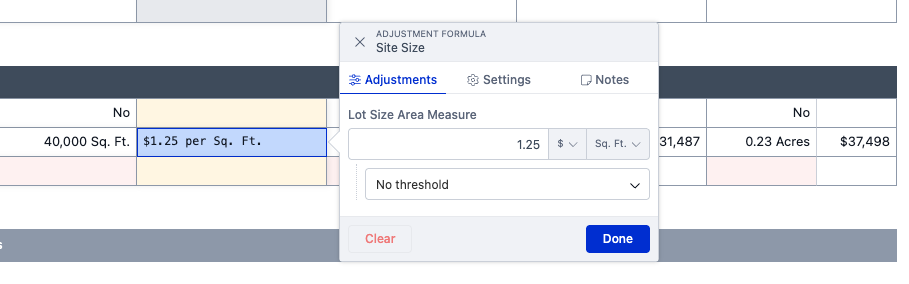
Amount per unit of area (site size, area fields)
Area fields are always $ per unit and include a unit selector — Sq. Ft., Acres, Ha., or Sq. M.
Units convert automatically: if your rule is in $/Sq. Ft. and a comp's lot is recorded in acres, DataMaster converts square feet to acres before comparing, so mixed-unit comps don't need cleaning up first.
Date fields (time adjustments)
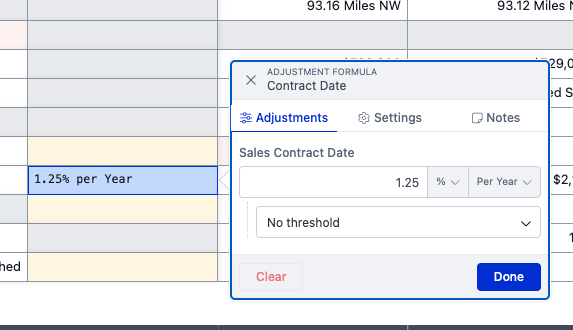
Sale Date and Contract Date rows are time adjustments, so they're measured from the comp's date to your report effective date — not to the subject's date.
Choose an amount with a $ or % prefix and a Day, Month, or Year unit:
adjustment = (effective date − comp date) × rateFor example, 0.17% per Year applies your annual market trend to each comp based on how long ago it sold. Change the report's effective date and every time adjustment recalculates.
Value tables (dropdown, yes/no, and free-text fields)
Rows that hold a choice rather than a number — View, Design, Attached vs. Detached, and similar — use a lookup table instead. Click Add Value, pick the comp value, and enter the dollar adjustment that applies when a comp has it:
Comp value | Adjustment |
|---|---|
Attached | $2,000 |
Detached | -$3,000 |
These map the comp's value straight to a flat amount — there's no subject differencing. Any comp value you haven't listed contributes $0, so you only need to enter the values you actually want to adjust for. Each dropdown value can be mapped once, and free-text fields let you type the comp value yourself.
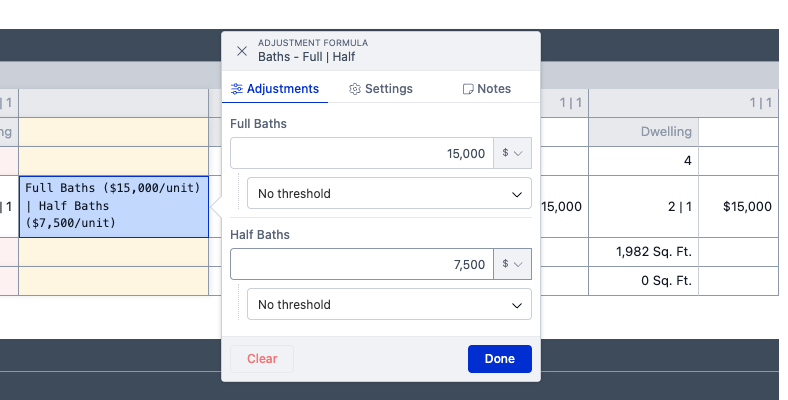
Rows driven by more than one field
Some rows are built from several fields — Bathrooms, for instance, is Full Baths plus Half Baths. You get one sub-formula per field, and the row's adjustment is their sum: Full Baths ($2,000/unit) | Half Baths ($1,000/unit).
Thresholds — skipping adjustments that are too small
Small differences often don't warrant an adjustment. A threshold gates a field so it contributes $0 unless the comp differs enough to matter. Choose one of:
Difference must be at least … — based on the raw gap between subject and comp. Use the unit prefix for an absolute gap (
≥ 200 Sq. Ft.,≥ 3 Months) or % for a proportional one.Adj.mustbeatleast…∗∗—basedonthedollarresult.Use∗∗Adj.mustbeatleast…∗∗—basedonthedollarresult.Use∗∗ for a flat floor (
≥ $1,000) or % for a share of the comp's sale price (≥ 10% of Sale Price).
Thresholds apply to amount and date fields. Value tables don't use them — you simply leave a value out of the table if it shouldn't be adjusted. When a threshold is set, the grid cell shows it alongside the rule: $2.50 per Sq. Ft. if Δ ≥ 200 Sq. Ft.
Rounding
On the Settings tab, Round to Nearest rounds the row's total adjustment to the nearest $100, $500, $1,000, $5,000, or $10,000 — or leave it on No rounding for exact figures. Rounding is applied last, after the row's fields are summed, so multi-field rows round once rather than field by field.
Notes
The Notes tab holds free-text comments on the adjustment — where the rate came from, which analysis supported it, why you set a threshold where you did. Notes save with the formula and stay with the report.
You can also leave a note on a row without setting any numeric rule at all, which is a convenient way to record your reasoning on rows you're adjusting by hand.
Auto vs. Override
Once a row has a formula, every comp's adjustment cell carries a Method:
Auto (the default) — the amount comes from the formula and updates on its own. The value is read-only.
Override — you enter the amount yourself, and Power Adjust leaves that comp alone from then on.
Use Override for the comp that doesn't fit the pattern while the rest of the grid stays on the rule. Adjustments you entered by hand before adding a formula are preserved as overrides — a new rule never quietly overwrites work you've already done.
Summary
Show / hide the column | Power Adjust in the grid toolbar, or ⌘/Ctrl + Shift + A |
Create a rule | Click a cell in the Adjustments column |
Numeric & area rows | $ or % per unit, applied to the subject-vs-comp difference |
Date rows | $ or % per Day / Month / Year, measured to your effective date |
Choice & text rows | A value table mapping each comp value to a flat amount |
Thresholds | Skip the adjustment unless the difference — or the dollar result — is big enough |
Rounding | Round the row's total to the nearest $100 – $10,000 |
Notes | Free-text reasoning saved with the rule |
Override | Hand-enter any single comp without breaking the rule for the others |
Define the rule once, let the grid do the arithmetic, and keep your reasoning visible and consistent across every comparable.