How to View MLS Photos in DataMaster
Edited
This guide walks you through accessing MLS Photos for each comparable.
Step 1
Navigate to your DataMaster report.
Step 2
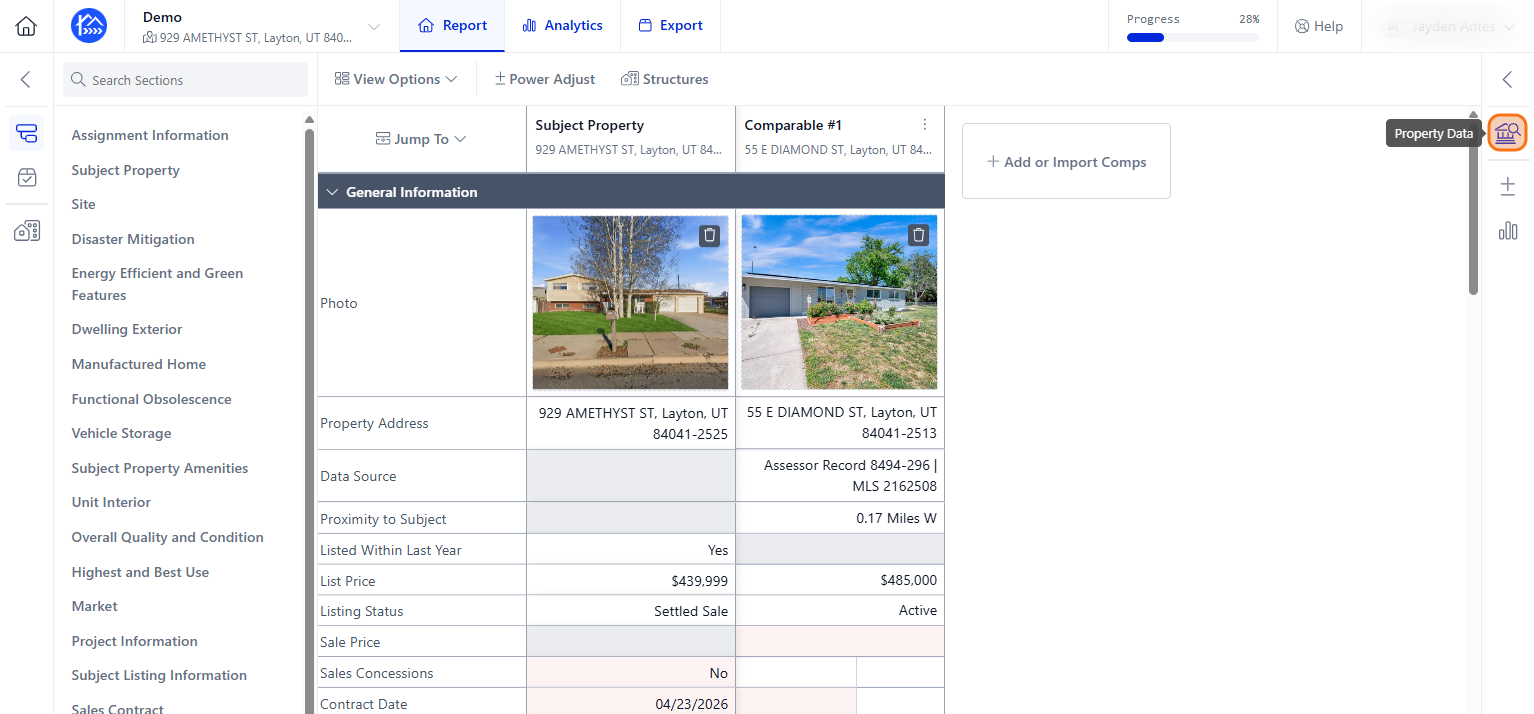
Once you have the comparables and subject in Data Master 3.6, click the Property Data icon on the right side. This will give you a view of all your MLS information for both your subject and all your comparables.
Step 3
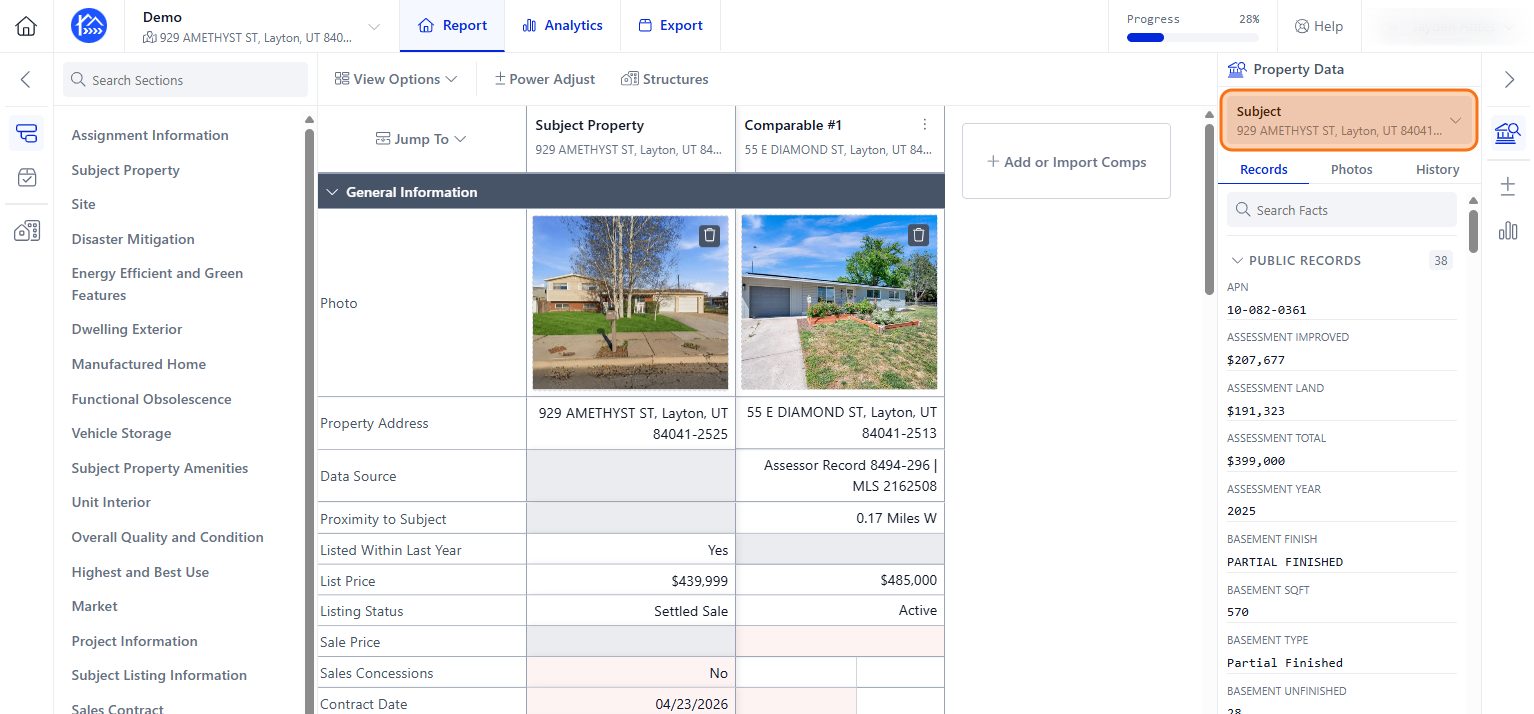
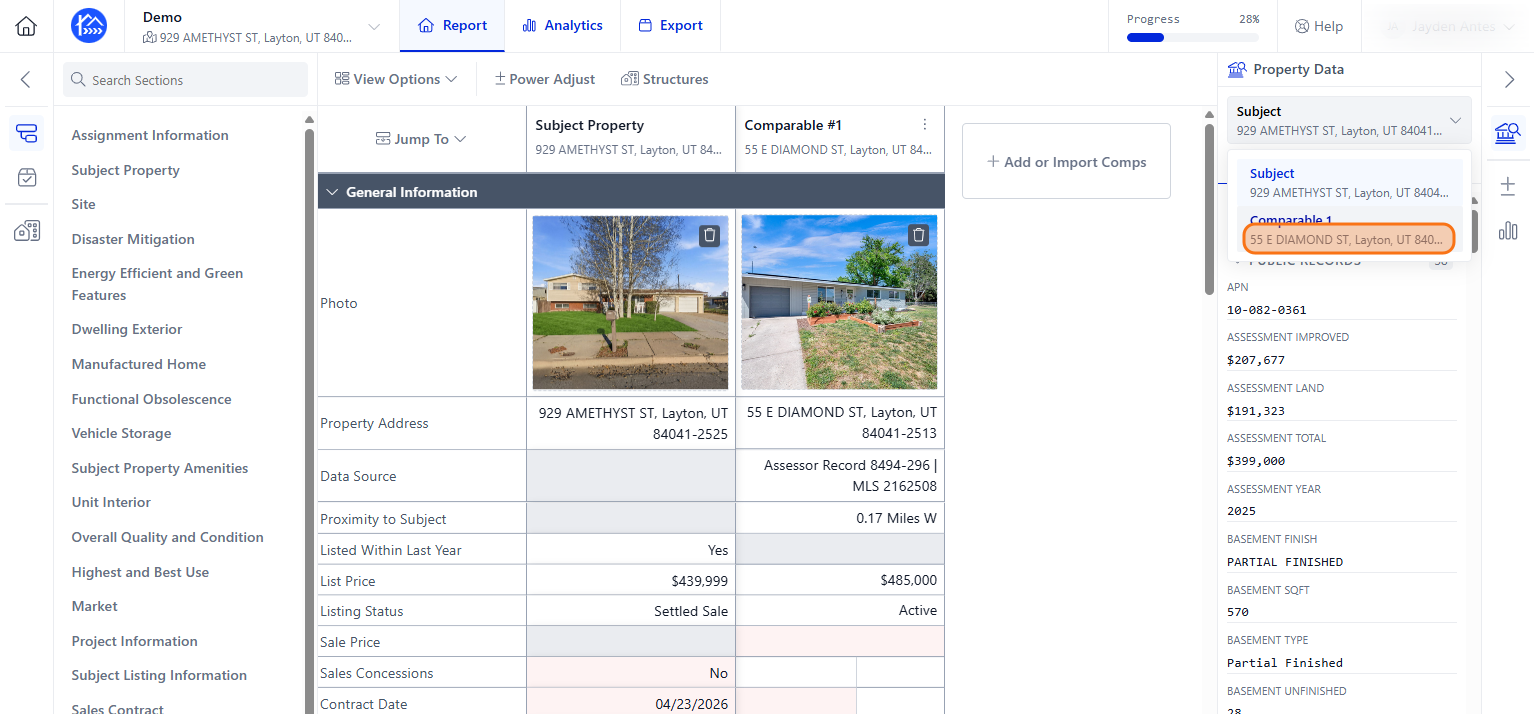
You can tab between your properties here by clicking the Subject dropdown menu.
Step 4
Select a comparable property from the list, to load its specific data.
Step 5
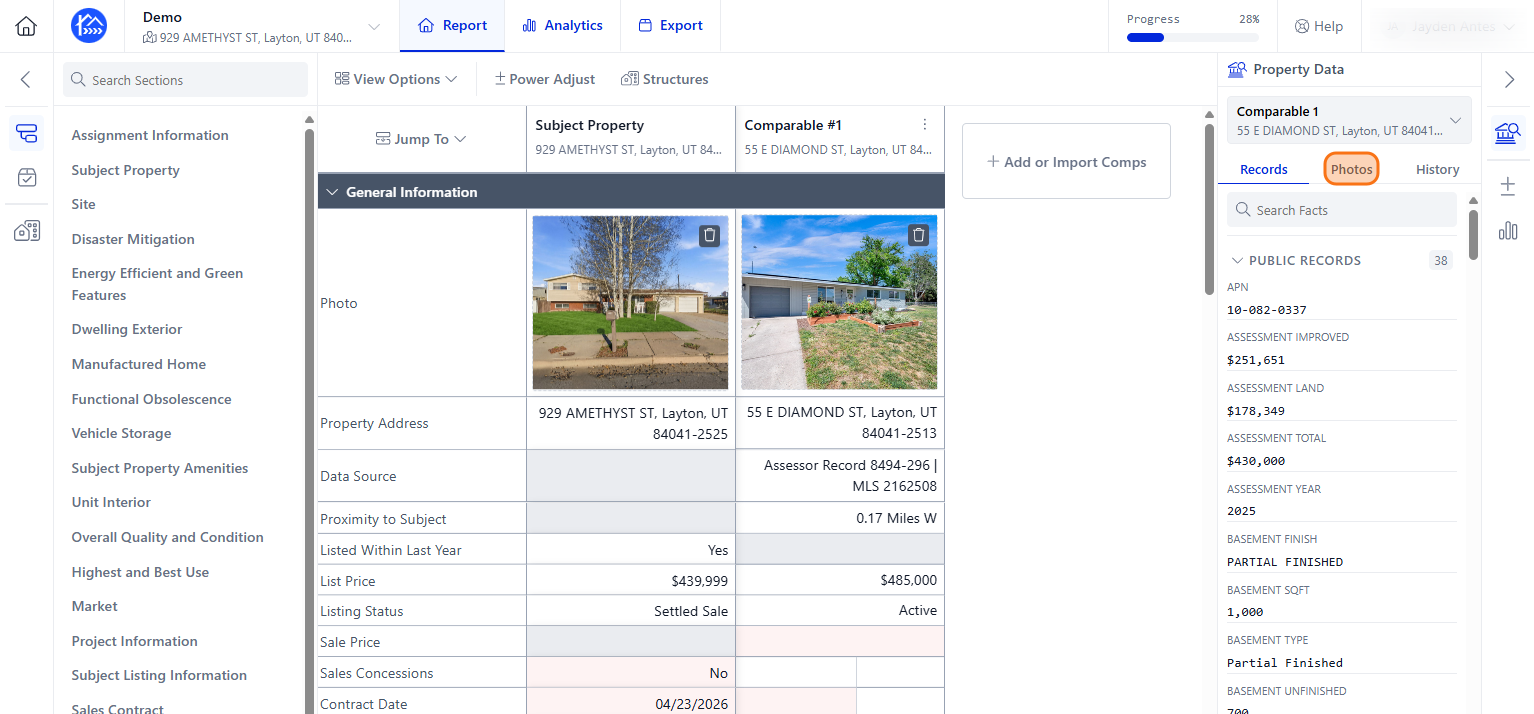
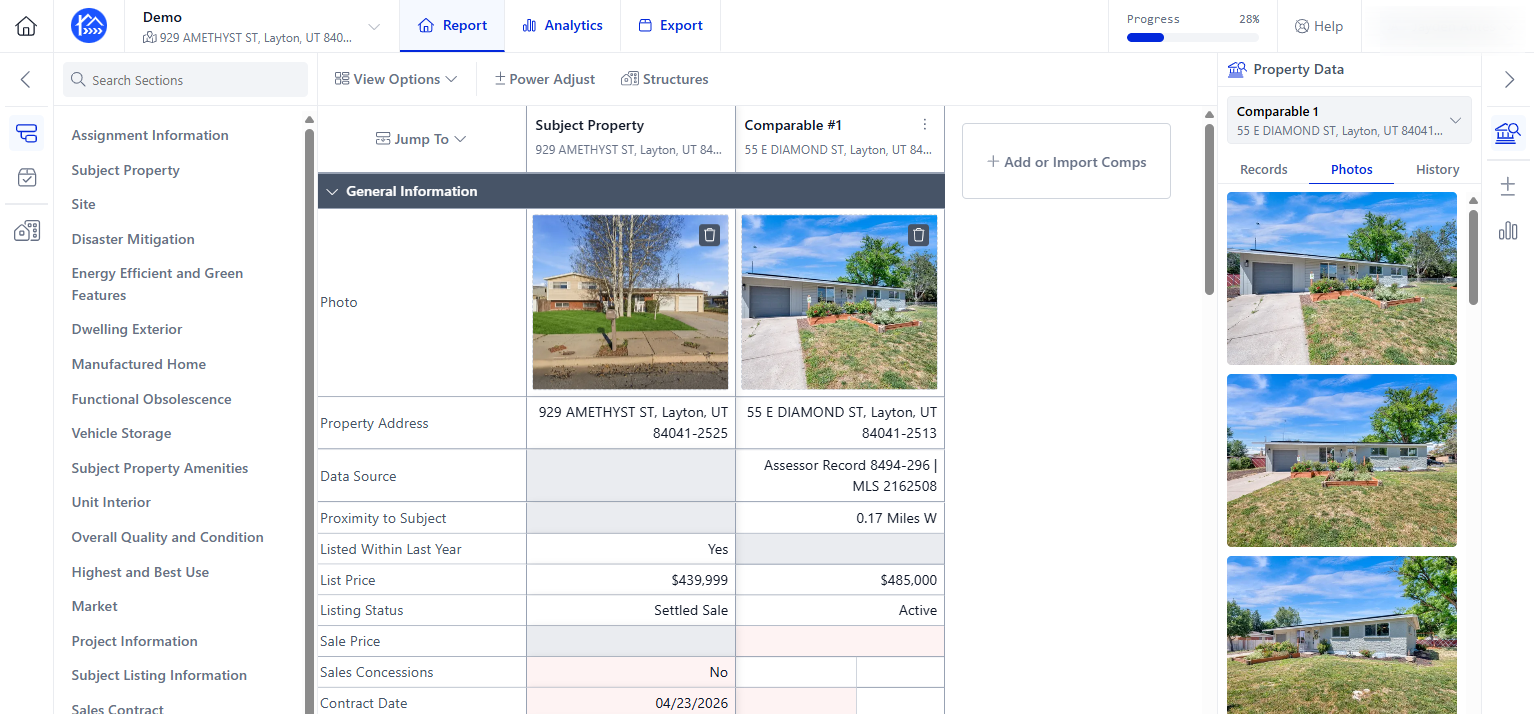
You can also see your photos and the history. Click the Photos tab to view images associated with the selected property.