
Auto-Fill Commentary
This guide shows how to have DataMaster's AI Assistant write a commentary field for you (Auto-fill), or polish commentary you've already written (Auto-enhance). Both are available on every commentary field in your UAD 3.6 report, such as Dwelling Exterior Commentary, Market Commentary, etc.
Auto-fill: write new commentary from your report data
Navigate to your report within the DataMaster portal and open the section with the commentary field you want to fill. This example uses Dwelling Exterior.
Find the commentary field and click Auto-Fill at its top-right corner.

Click Auto-fill in the menu.
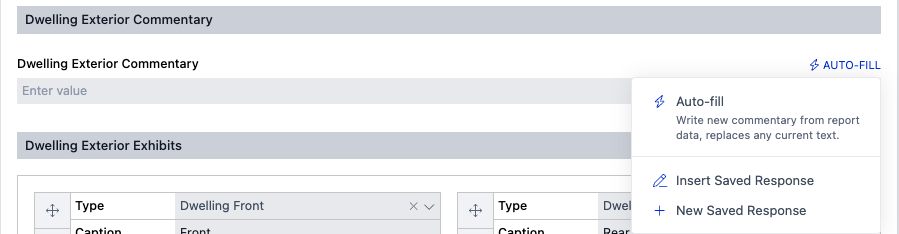
The AI Assistant panel opens on the right and starts working. It reads the report's data for that field (for Dwelling Exterior: materials, foundation, roof, windows, quality and condition ratings, defects) and what the UAD rules require for it.
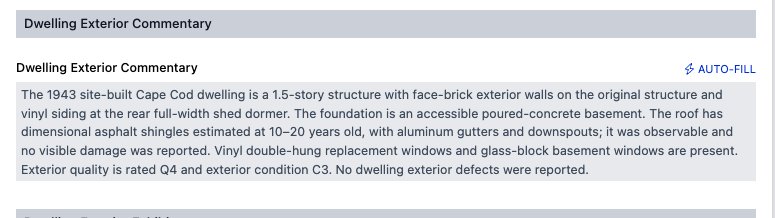
After a few seconds the commentary is written into the field, and the assistant summarizes what it covered.
Auto-enhance: clean up commentary you've written
This feature helps you turn bullet points or a quick summary into professionally crafted commentary.
Type your commentary into the field. Rough notes and shorthand are fine. Bullet points are also okay.
Click Auto-Fill next to the field, then choose Auto-enhance.
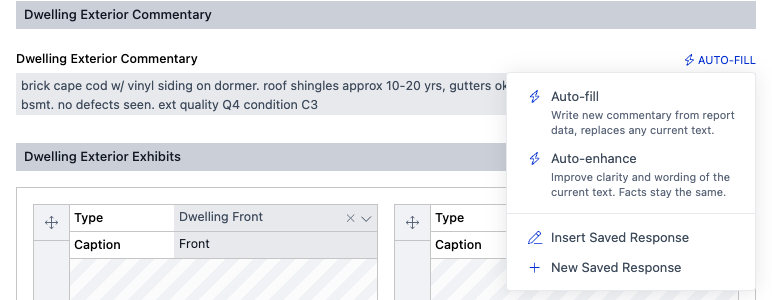
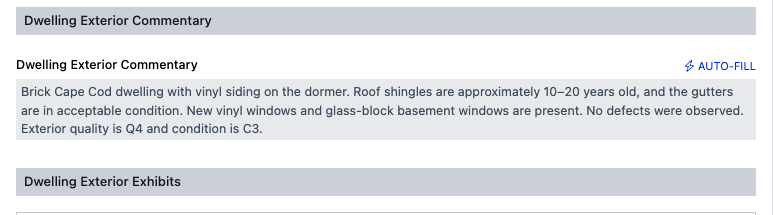
The assistant rewrites your text for clarity, grammar and wording, and saves it back to the field. Your facts, figures and conclusions stay the same.
Good to know
Both actions replace the text in the field. Auto-fill writes new commentary over anything that's there. Auto-enhance rewrites what's there. If you want to keep a version, copy it somewhere first.
Auto-enhance only appears once the field has text. On an empty field the menu shows Auto-fill only.
You can request further edits. Is the generated commentary not up to your standards? You can share feedback with the AI Assistant to have it revise the commentary to your liking.
Always review the result. The assistant only states what's in your report data, so missing or incorrect data leads to incomplete commentary. You are responsible for the final wording, as with anything you sign.
Want to approve changes first? By default the Auto-apply switch at the top of the AI Assistant panel is on, so changes are saved right away. Turn it off and the assistant will propose each change as a card in the chat. Nothing touches your report until you click Apply.
Don't see Auto-fill or Auto-enhance? They're part of the AI Assistant, which depends on your plan. Without it, the menu shows only the Saved Responses options (see Insert and Create Saved Responses).
The menu also has Saved Responses. Insert Saved Response and New Saved Response at the bottom of the same menu let you reuse your own standard language.