
Saved Responses and Commentary
Saved Responses let you store commentary you write often, like standard disclaimers, inspection-scope statements or "no defects observed" language, and insert it into a commentary field in a couple of clicks instead of retyping it. This guide shows how to create a saved response and how to insert one.
Create a saved response
Navigate to your report within the DataMaster portal and open the section with the commentary field you want to save language for. This example uses Dwelling Exterior Commentary.
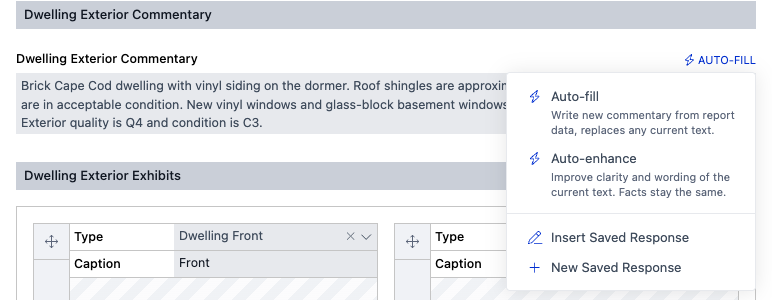
Click Auto-Fill at the top-right corner of the commentary field, then choose New Saved Response.
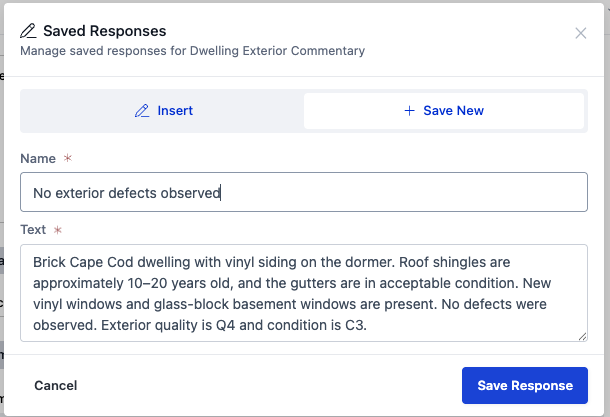
The Saved Responses window opens on the Save New tab. Text is filled in with whatever is in the field now, so you can save commentary you've just written as-is or edit it first. Enter a Name you'll recognize later.
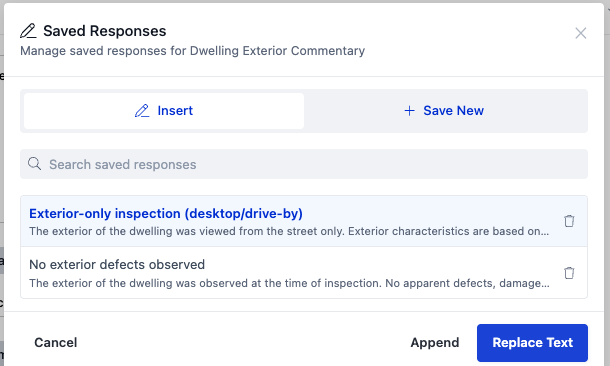
Click Save Response. The window switches to the Insert tab with your new response in the list.
Insert a saved response
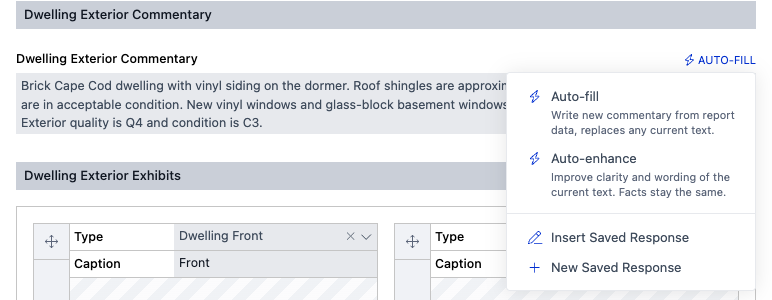
Click Auto-Fill at the top-right corner of the commentary field, then choose New Saved Response.
Click the response you want to use. If you have a lot of them, type in Search saved responses to filter by name or text.
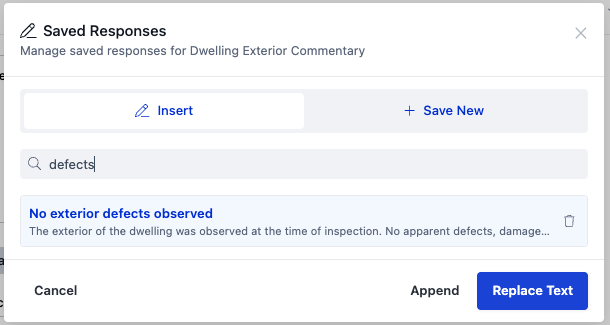
Choose how to insert it:
Replace Text swaps whatever is in the field for the saved response.
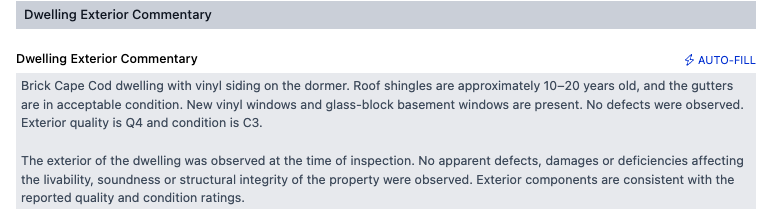
Append keeps your current text and adds the saved response below it as a new paragraph.
Tip: double-clicking a response in the list is a shortcut for Replace Text.
The text is added to the field. In this example it was appended below the existing commentary.
Good to know
Responses belong to one field. A response saved from Dwelling Exterior Commentary is only offered on Dwelling Exterior Commentary, so each field's list stays short and relevant.
Responses are separate per report form. Responses saved on a URAR report are only offered on URAR reports, not on Appraisal Update or Completion Report forms, and vice versa.
Responses are shared with your whole account. Everyone on your DataMaster account sees the same library, which helps keep standard language consistent across your office.
Deleting a response. On the Insert tab, click the trash icon next to a response and confirm. It's removed for everyone on your account, and the commentary already in your reports is not affected.
Save language, not facts. Keep saved responses general (scope of inspection, standard statements). Property-specific details such as ratings, ages or materials belong in each report's own commentary.
Undo works. If you insert the wrong response, click Undo in the toolbar or use a keyboard shortcut.