
Find and Fix Report Errors with the Errors Panel
The Errors panel lists everything in your UAD 3.6 report that needs attention before you export it: required fields that are still empty, entries that break a UAD rule, and, once you click Run Validation, the findings from the GSE's UAD 3.6 compliance check. This guide shows how to open the panel, work through each error, run validation and filter the list.
Open the Errors panel
Navigate to your report within the DataMaster portal and open the Report tab.
Click the warning triangle in the left-hand rail. The red badge on it shows how many errors the report has.
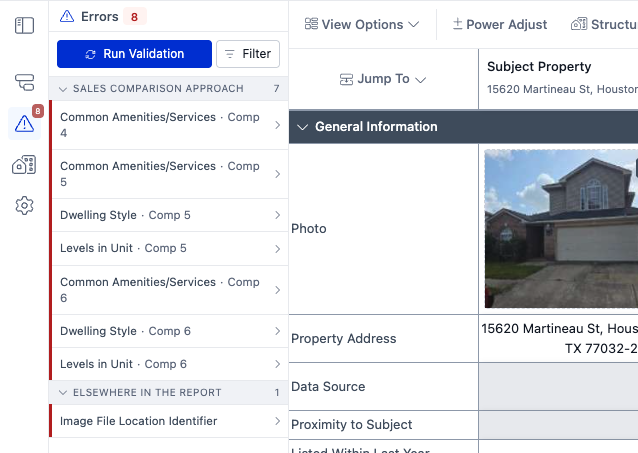
Errors are grouped under the report section they belong to, in the same order as the report. The number beside each section heading is how many errors that section has. Click a heading to collapse or expand it. Errors on the Sales Grid also name the comparable, for example Dwelling Style · Comp 5.
The list keeps itself up to date while you work. When you fill in a missing field, its error drops off the list and the badge count goes down.
Fix an error
Click an error in the list. Two things happen:
DataMaster takes you to the field. It opens the right section, scrolls to the field and highlights it in red. For a Sales Grid error, it scrolls the grid to that comparable's cell.
The error expands to show what's wrong. You can see the issue printed in red underneath each error heading.
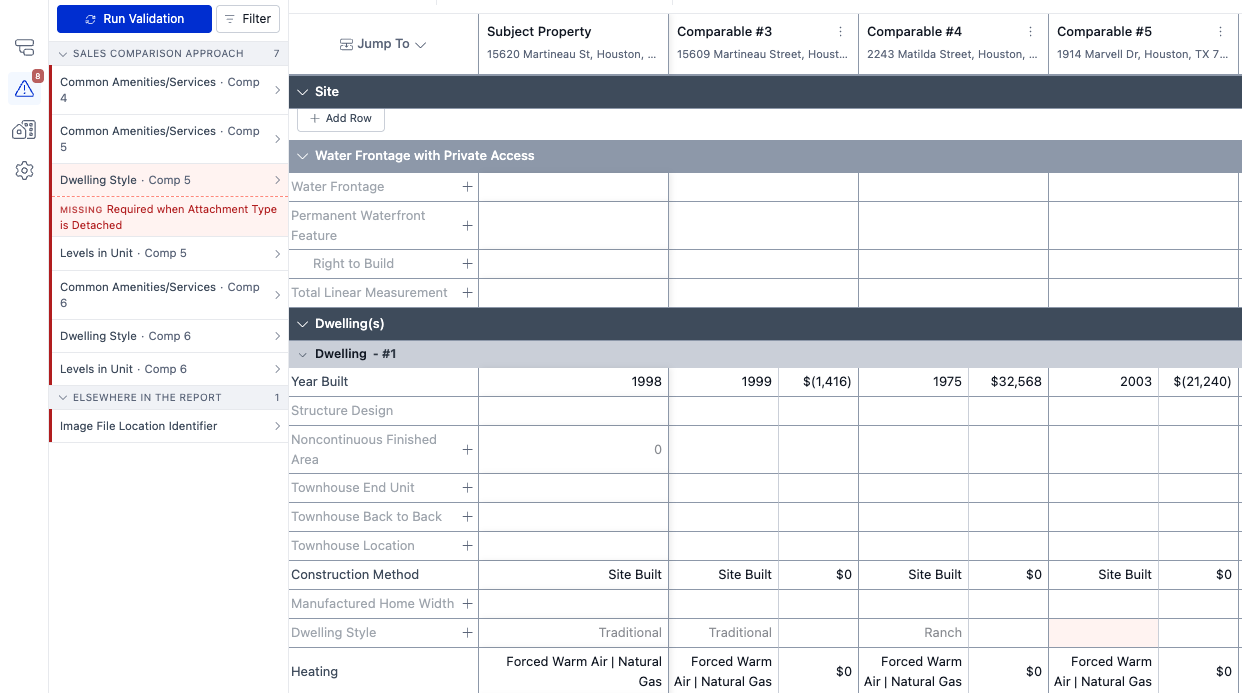
Read the message and correct the field. In this example, Comparable #5 is detached, so a Dwelling Style is required. The fix is to choose one in the highlighted cell.
Once the field is fixed, the error leaves the list. Click the next error to keep going.
What the error types mean
Errors from DataMaster's own checks show a tag in front of the message that says what kind of problem it is:
Missing. A required field is empty. The message often says when it's required, such as "Required when Attachment Type is Detached". Fill in the field.
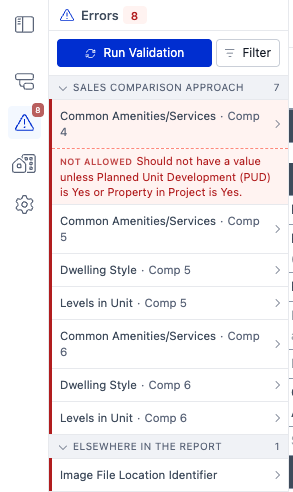
Not allowed. The field has a value, but another answer in the report says it should be blank. In the example below, Common Amenities/Services should only be filled in for a comparable that's in a PUD or project, and Comparables #4 and #5 aren't. Clear the value, or, if the other answer is the one that's wrong, correct that instead.
Out of range. A number is outside the allowed range, or text is too long. The message gives the limit, for example "must be at most 10" or "must be 4000 characters or fewer (currently 4210)".
Invalid. Two or more answers contradict a UAD rule when taken together. The message names the answers that conflict.
Two more types come from Run Validation (see the next section). Their message is shown without a tag:
UAD 3.6 Compliance. A finding from the GSE's compliance check, in the GSE's own wording.
Format. A value is in a format the GSE won't accept. These appear under their report section, or under Data Issues at the bottom of the list.
The bar on the left edge of each error shows its severity. Red means it's an error and must be fixed. Amber means it's a warning to review. Warnings come only from the GSE check, and they don't stop an export.
Run Validation: check the report against the GSE's UAD 3.6 rules
DataMaster checks your report against the UAD 3.6 rules continuously as you edit. Run Validation validates your report using the the GSE's UAD 3.6 compliance rules and adds what it finds to the list.
Click Run Validation at the top of the Errors panel.
While the check runs, the button reads Validating.
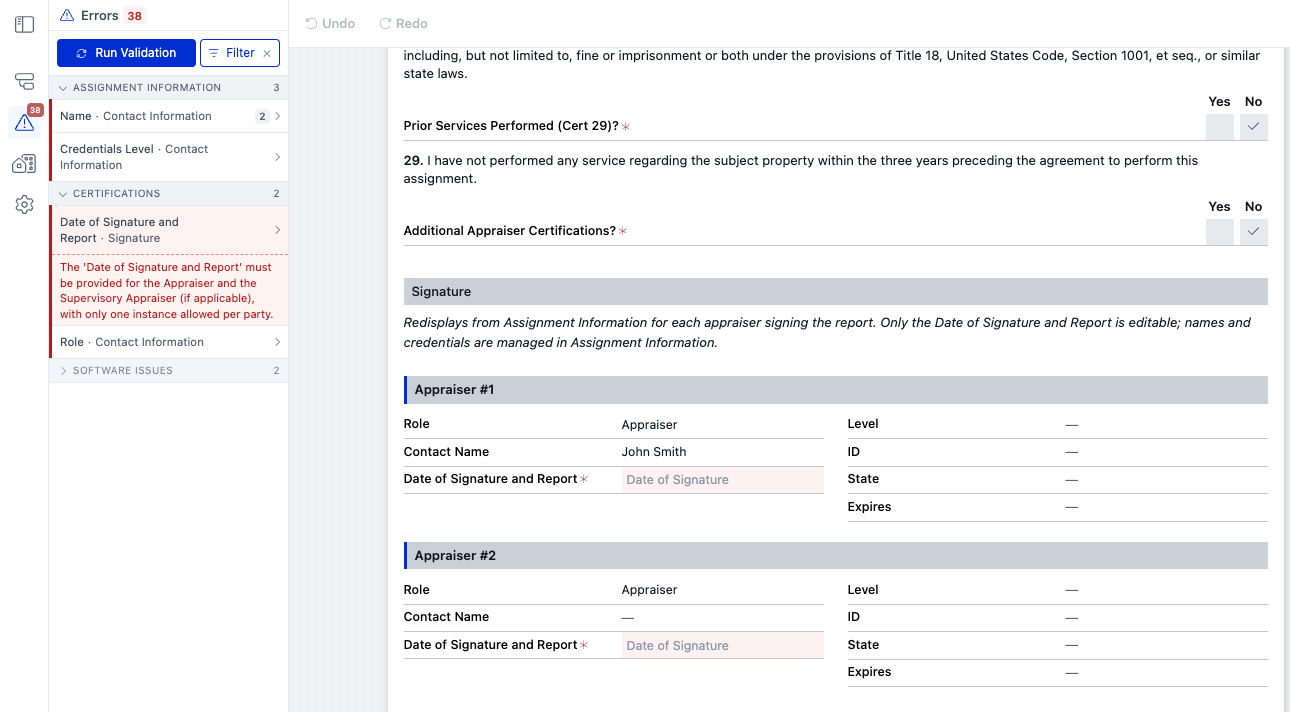
Findings are added to the list under their report sections with the type UAD 3.6 Compliance. Click one to go to the field and read the GSE's message. In this example the GSE requires a Date of Signature and Report for each appraiser, and both empty date fields are highlighted.
When the check is done, the button turns grey because the GSE has already checked this version of the report. When you change anything in the report, the button becomes available again.
Filter list of errors
Click Filter at the top of the Errors panel.
Tick what you want to see:
Severity: Errors, Warnings
Type: Missing, Not allowed, Out of range, Invalid, Format, UAD 3.6 Compliance
Only the options that apply to this report are listed, each with its count.
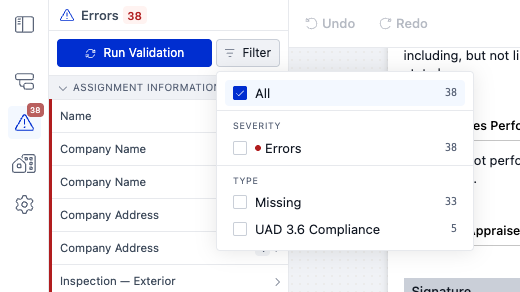
Tick more than one option to combine them. Within Severity or within Type, each extra option adds more errors to the list. An option from each group narrows it: Errors + UAD 3.6 Compliance shows only the GSE findings that must be fixed.
While a filter is on, the Filter button turns blue and shows an ×. Click the ×, or choose All in the menu, to see everything again.
The count at the top of the panel and the badge on the rail always show the total for the whole report, not just the errors the filter is showing.
Good to know
Errors block a submission export. When you export for submission, the GSE check runs automatically. If it finds errors, the Export tab shows "Errors must be fixed before you can export for submission". Click View report to come straight back to this panel.
GSE findings don't clear on their own. DataMaster's own checks update as you type. UAD 3.6 Compliance findings describe the report as it was when you clicked Run Validation, so they stay in the list after you fix the field. Click Run Validation again to confirm they're resolved.
AI Assistant can help fix errors for you. Ask the AI Assistant, at any time, to help you fix validation errors.