
Applying Time and Feature Adjustments
This article covers the the time and feature adjustments DataMaster derives from the comparable sales you’ve imported into this report from your MLS. Note that this feature may not available in all plans.
The Adjustments drawer puts your market-derived adjustments right beside the Sales Comparison Grid, so you can review the evidence and apply a value without leaving the report.
Opening the drawer
From inside a report, click the ± Adjustments icon in the right-hand rail. The drawer slides in and stays open while you work in the grid, so you can scroll the grid and the drawer independently.
The header shows how many closed sales are backing the analysis, and the drawer is split into two stacked sections whose headings stay pinned as you scroll:
Time Adjustments — how the market moved, month by month.
Feature Adjustments — the dollar value of each property feature.
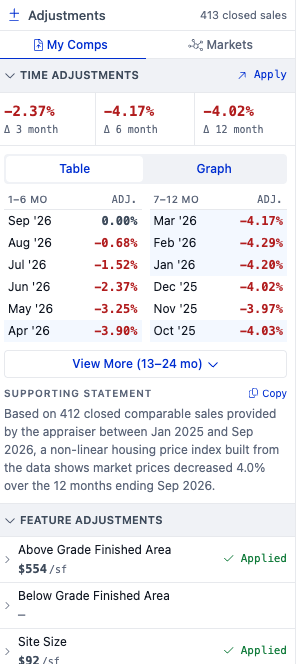
Time Adjustments
The Time Adjustments section leads with three tiles — the market’s change over the trailing 3, 6, and 12 months — followed by the full month-by-month detail. You can read that detail two ways using the Table / Graph toggle.
Table view
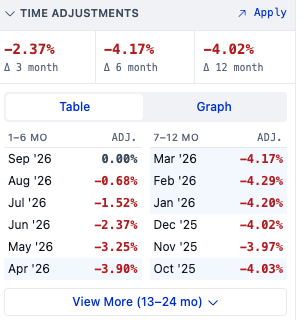
The table is a lookup: for a comparable that sold N months before your effective date, it shows the percentage to adjust that sale by. Rows read top-down, most recent first, in two columns (months 1–6 and 7–12). View More (13–24 mo) expands the older rows.
Months in which one of this report’s own comparables sold are highlighted, so you can find the rows that matter to your grid at a glance.
Graph view
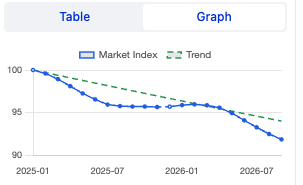
Switch to Graph to see the same information as a curve. The Market Index line starts at 100 and moves up or down with the market; the dashed Trend line shows the overall direction. Because the index is built from your own sales, it follows the real movement in your market rather than a straight-line assumption.
Copying the supporting statement
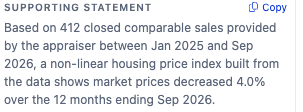
Below the table (or graph) is a plain-language Supporting Statement you can drop straight into your report to defend the time adjustment. Click Copy on the right of the heading and the full sentence is placed on your clipboard; the link briefly changes to Copied to confirm.
Feature Adjustments
The Feature Adjustments section lists one compact row per feature — the label, the suggested value, and an Apply control. Units are shown inline (for example /sf for a per-square-foot rate or /yr for year built).
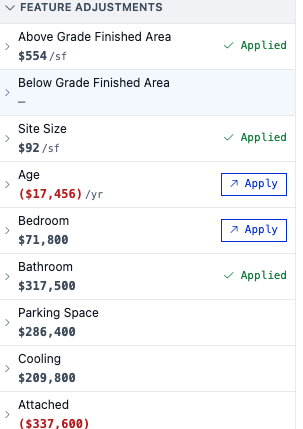
A few things to notice in the list:
Negative values (for example Age or Attached) are shown in red — these are features the market takes value away for.
A feature marked with a dash ( — ) couldn’t be measured defensibly from your comparables; there’s nothing to apply, and expanding the row explains why.
Expanding a row — the evidence behind a value
Click any feature row to expand it. You’ll see:
the Supporting Statement for that feature (with its own Copy link), describing how the value was derived and over how many sales; and
a 90% confidence interval shown as a box plot, so you can see the range the estimate sits within at a glance.
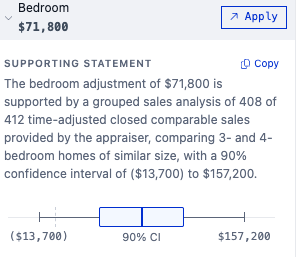
An expanded feature row: supporting statement plus the 90% confidence interval.
The Apply button
Apply writes the selected value onto the matching row of the Sales Comparison Grid and applies it to every comparable automatically.
Each feature row has its own Apply button; the Time Adjustments section has a single Apply in its header that writes the time rate to the grid’s date row.
Once a value is on the grid, the button changes to a green ✓ Applied badge, so you can see at a glance what’s already in place.
If a grid row already carries a different rate, applying will ask you to confirm before replacing it — your existing work is never overwritten silently.
One adjustment is applied at a time; the other buttons pause briefly while an apply completes.
You can still hand-enter or override any individual comparable’s adjustment directly in the grid — applying from the drawer is simply the fast path for putting a market-supported value across all comps at once.